
Arcade Convoy Radio Installation and Music Setup
Installation and Setup
Arcade Convoy Radio is being prepared for its next Windows release alongside Arcade Convoy. Current installer, portable version, and system-requirement information will be posted here when that release is ready.
Once the next release is available, this page will include current setup steps for both the installed and portable versions.
Elevate Your Gaming and Music Experience
Immerse yourself in a world of captivating music and thrilling gaming with Arcade Convoy Radio and Arcade Convoy. Discover the perfect harmony of rhythm and adventure at your fingertips.
Adding Music and Internet Radio
Adding Music:
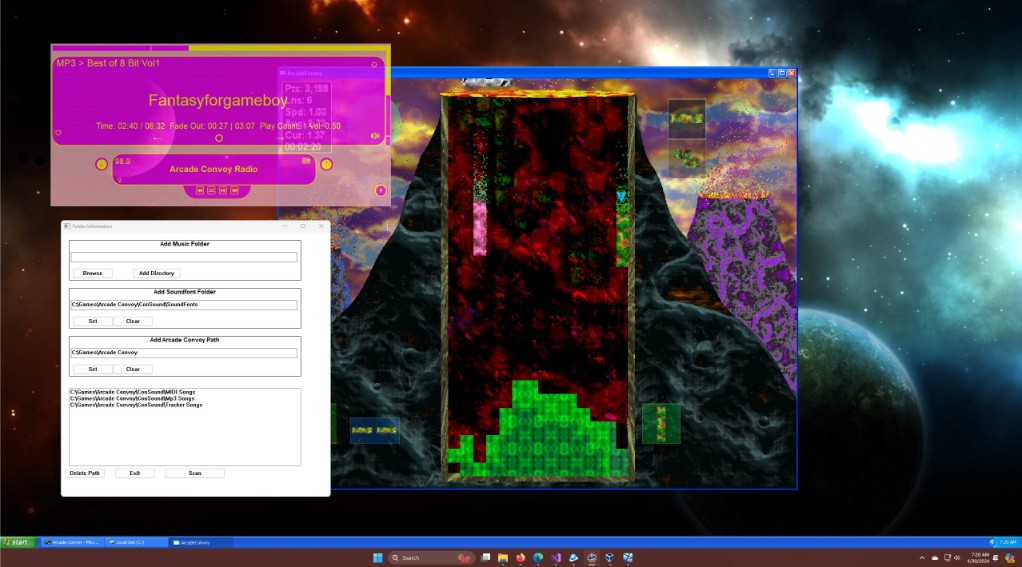
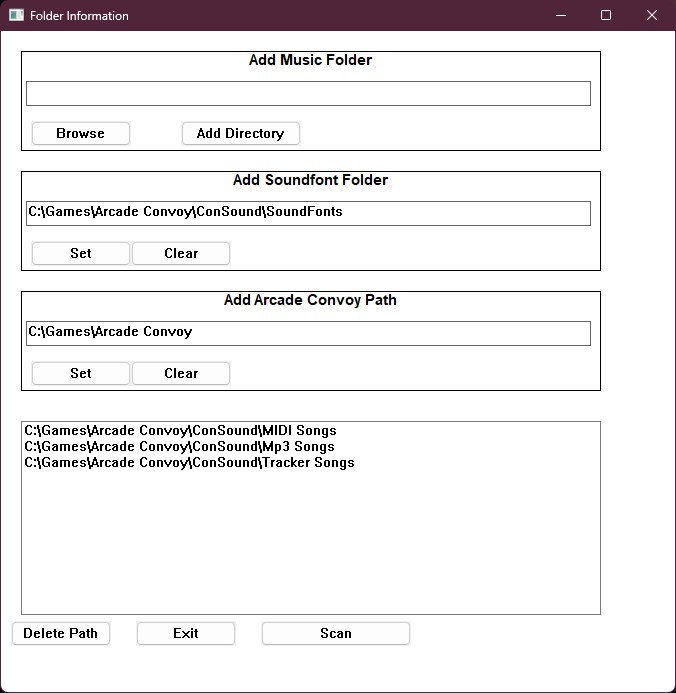
1. Launch Arcade Convoy Radio and click on “File” > “Select Local Folders.”
2. In the new window, add music directories by typing the path or using the browse button.
3. Click on “Add Directory” to move the selected folder to the box below.
4. Repeat steps 2 and 3 for each directory you want to add.
5. Click on “Scan” to cache the music files.
Supported Music Formats:
– MIDI (.midi, .mid)
– MP3 (.mp3, .m4a, .flac)
– Tracker and module formats (.mod, .xm, .s3m, .it, .mtm)
Adding Soundfonts (Optional):
In the same window, locate the box and browse button for adding the soundfont directory. Select the directory containing your soundfont files for MIDI playback. There is a default soundfont folder, but You can add additional soundfonts to give MIDI playback more variety.
Integrating with Arcade Convoy Game (Optional):
Provide the Arcade Convoy game directory in the designated box. This enables retrieving and updating favorite song information between the radio and the game.
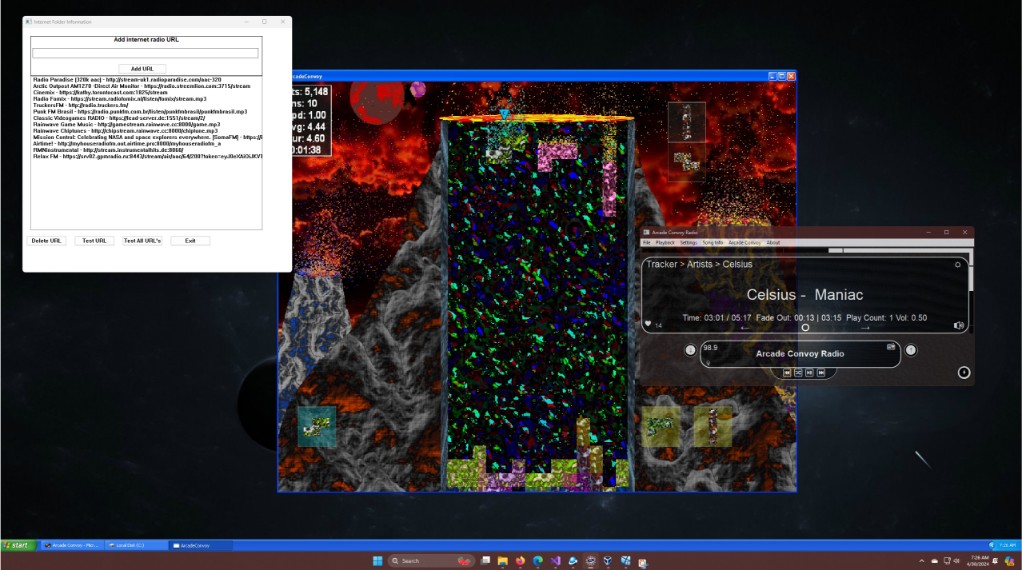
To add internet radio stations to Arcade Convoy Radio, follow these simple steps:
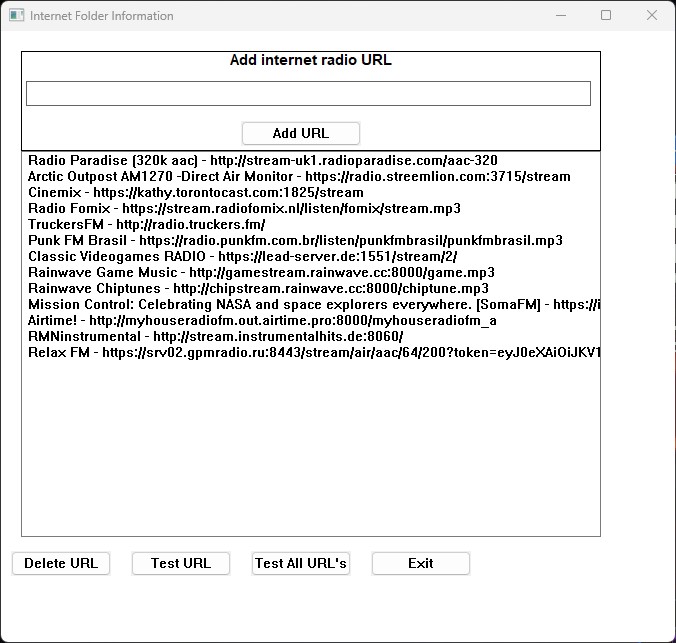
- Locate the text box designated for entering the internet radio station URL.
- Copy the URL of the internet radio station you want to add and paste it into the text box.
- 3. Click on the “Add URL” button. This action will move the entered URL down into another box that displays all the added internet radio stations.
That’s it! You have successfully added an internet radio station to Arcade Convoy Radio.
Additionally, you have the option to:
- Delete a URL: If you want to remove a previously added internet radio station, click on the “Delete URL” button after selecting a radio station.
- Test a URL: To ensure that the added URL is working correctly, click on the “Test URL” button. This will initiate a test playback of the selected internet radio station. If you test a radio station and it passes the actual radio station name will be updated.
- Test all URLs: If you want to test all the added internet radio stations at once, click on the “Test All URLs” button. This will play a short snippet of each station to confirm their functionality.
Once you have added your desired internet radio stations, you can start listening to them along with your local music files, all managed by Arcade Convoy Radio’s unique and customizable playback system.
Adding Music:
1. Launch Arcade Convoy Radio and click on “File” > “Select Local Folders.”
2. In the new window, add music directories by typing the path or using the browse button.
3. Click on “Add Directory” to move the selected folder to the box below.
4. Repeat steps 2 and 3 for each directory you want to add.
5. Click on “Scan” to cache the music files.
Supported Music Formats:
– MIDI (.midi, .mid)
– MP3 (.mp3, .m4a, .flac)
– Tracker and module formats (.mod, .xm, .s3m, .it, .mtm)
Adding Soundfonts (Optional):
In the same window, locate the box and browse button for adding the soundfont directory. Select the directory containing your soundfont files for MIDI playback. There is a default soundfont folder, but You can add additional soundfonts to give MIDI playback more variety.
Integrating with Arcade Convoy Game (Optional):
Provide the Arcade Convoy game directory in the designated box. This enables retrieving and updating favorite song information between the radio and the game.
To add internet radio stations to Arcade Convoy Radio, follow these simple steps:
- Locate the text box designated for entering the internet radio station URL.
- Copy the URL of the internet radio station you want to add and paste it into the text box.
- 3. Click on the “Add URL” button. This action will move the entered URL down into another box that displays all the added internet radio stations.
That’s it! You have successfully added an internet radio station to Arcade Convoy Radio.
Additionally, you have the option to:
- Delete a URL: If you want to remove a previously added internet radio station, click on the “Delete URL” button after selecting a radio station.
- Test a URL: To ensure that the added URL is working correctly, click on the “Test URL” button. This will initiate a test playback of the selected internet radio station. If you test a radio station and it passes the actual radio station name will be updated.
- Test all URLs: If you want to test all the added internet radio stations at once, click on the “Test All URLs” button. This will play a short snippet of each station to confirm their functionality.
Once you have added your desired internet radio stations, you can start listening to them along with your local music files, all managed by Arcade Convoy Radio’s unique and customizable playback system.
You have now successfully installed Arcade Convoy Radio and added your music collection. Enjoy the unique radio experience with customizable settings, cross-fading, and seamless integration with game controllers. For further assistance, refer to the user manual or contact our support team (Me).